
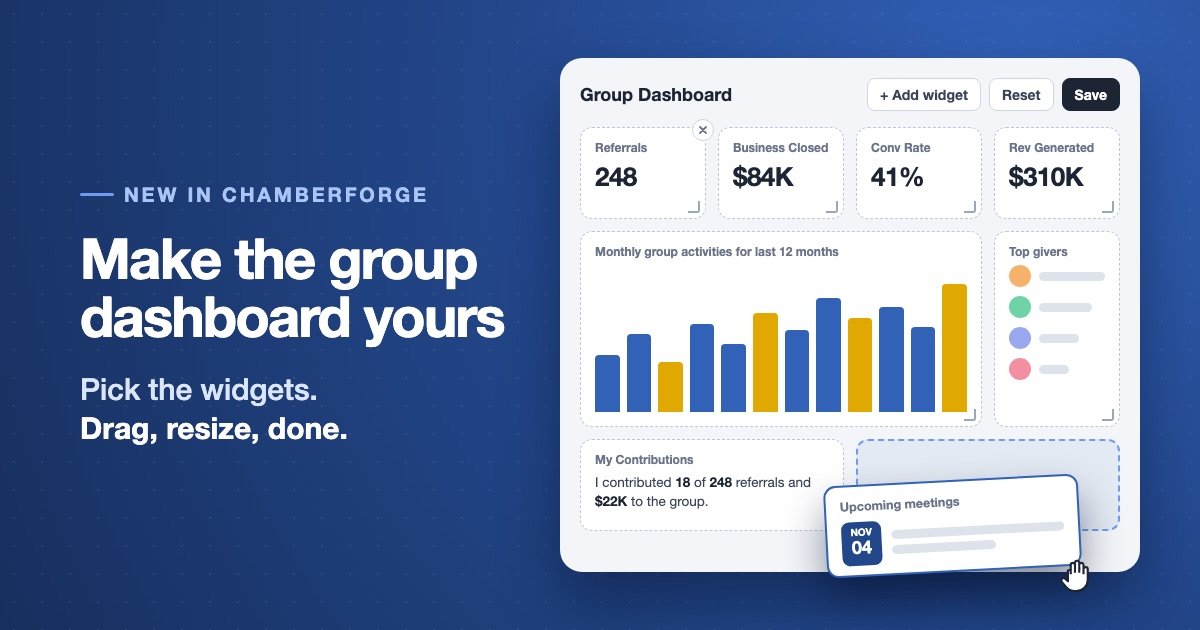
Every group dashboard used to look the same. Four numbers across the top, one chart underneath, whether your group lives for referrals, attendance or one-to-ones.
But a chapter that is rebuilding its attendance does not need the same screen as a chapter chasing revenue. So the group dashboard is now yours to arrange.
Edit it right on the page
If you manage a group, open its dashboard and click Edit dashboard. There is no settings page to hunt for. You change the dashboard while looking at it.
In edit mode you can:
- Add a widget from the Add widget menu
- Remove a widget with the small button on its corner
- Drag a widget to a new spot
- Resize a widget from its bottom corner
When you are happy, click Save. Everyone in the group sees the new layout the next time they open the dashboard.
It keeps itself tidy
We wanted every member's dashboard to look clean, no matter how many times a manager has rearranged it.
Widths snap to a quarter, a third, a half or the full row, so the cards always line up. If you make a widget narrower and leave a gap, the next widget that fits moves up to fill it, and when nothing fits the row stretches to close the space. Cards never scroll either. A widget is never smaller than what it needs to show, and as you make it bigger its text and figures grow with it.
Fourteen widgets to choose from
The dashboard starts out as you know it: Referrals, Business Closed, Conv Rate and Rev Generated, plus the monthly group activity chart for the last 12 months.
From there you can add:
- Monthly charts for referrals, business closed, 1-to-1s and attendance
- Upcoming meetings, so the next meeting is the first thing members see
- Top givers, to recognize the members giving the most referrals
- Recent referrals, to show the group what is moving right now
- New members, so everyone knows who to welcome
- My Contributions, which shows each member their own share of the group's referrals and revenue over the last 12 months, next to the average member
My Contributions is the one we would add first. Each member sees their own numbers, not someone else's, and seeing "I gave 3 of the group's 120 referrals" next to the average does more than any reminder in a meeting.
One layout for every group in an organization
If you run an organization with several groups, you do not have to set each one up by hand.
When an organization manager saves from a group's dashboard, they choose whether the layout is for this group only or for all groups in the organization. They also choose whether groups can change it afterwards. If they lock it, group managers see "Managed by" and the organization's name instead of the Edit button, and every group shows the same dashboard.
A group that has already made its own layout keeps it. Reset to organization default brings it back in line whenever you are ready, and Reset to default always takes you back to where you started.
Why we built it
A dashboard only helps if people look at it, and people look at numbers that matter to them. Leaders know which numbers those are for their group. Now they can put them first.
Try it this week
- Open your group's dashboard on a computer and click Edit dashboard. Editing needs a wide window, so it does not show on phones.
- Add My Contributions and Upcoming meetings.
- Drag the widget your group talks about most to the top, and click Save.