
Every Meeting You Belong To, on One Calendar
If you belong to more than one group, you know the routine. Open one group's meeting page, then another, then go check your one-to-ones, and only then can you say what your week actually looks like.
We built a calendar so you can stop doing that.
Your calendar
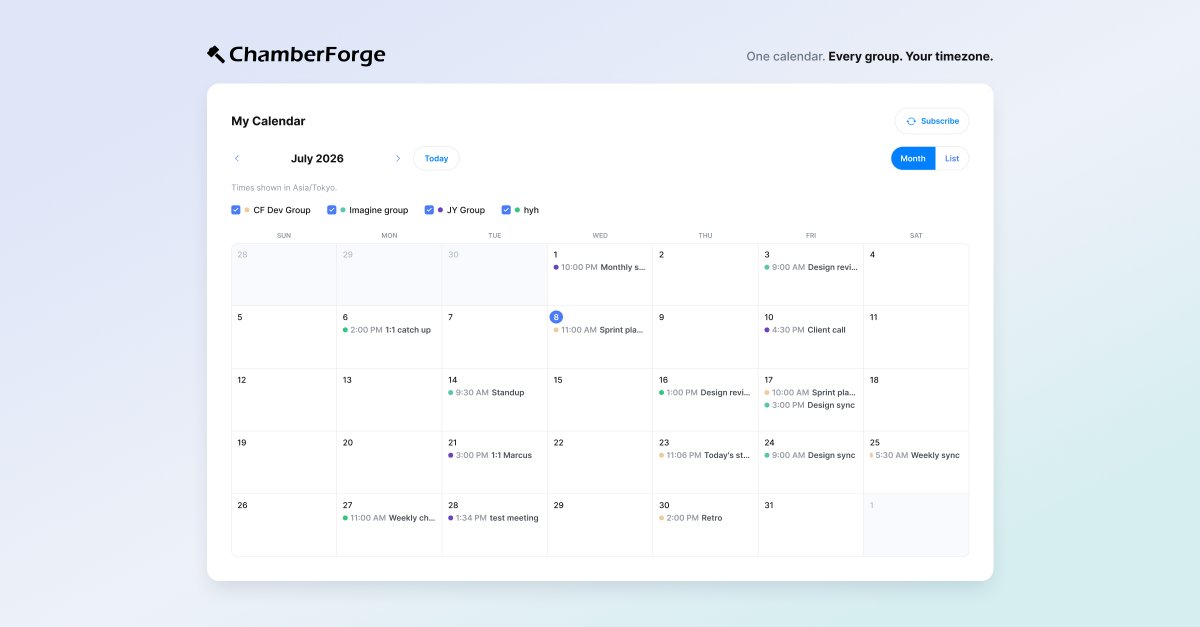
Calendar sits in the left navigation, just under Dashboard. It shows every meeting from every group you belong to or run, plus every one-to-one you have scheduled, on one month grid.
Each group gets its own colour, and the legend along the top doubles as a filter. Uncheck a group and its meetings drop out of view. That choice is remembered, so if you mostly care about one chapter, the calendar stays tuned to it the next time you open it.
A busy day will not stretch its whole week taller. After the third event, the day shows a "+2 more" link you can click to expand. If you would rather read the month as a plain agenda, there is a List toggle next to the month name.
Groups have one too
Group meeting pages now carry a Calendar and List toggle at the top. Same meetings, same permissions, laid out on a grid instead of in a list.
If you run the group, hover over any day and click the plus sign. You land on the new meeting form with that date already filled in. Booking a quarter of meetings goes a lot faster when you can do it by clicking across a month.
Times are shown in your timezone
This is the part we spent the most time getting right. If you are in Seoul looking at a New York group's Tuesday breakfast, being told "7:30 AM" does not help you. What you need to know is that it starts at 8:30 PM where you are.
So every time on the calendar is converted to your timezone. When the group's own clock reads differently, the event carries both: your time first, and the group's time underneath it. The day an event lands on is worked out the same way, which is why a late evening meeting never quietly shows up on the wrong date.
Subscribe from Google, Outlook or Apple Calendar
This is the part worth doing today, even if you never open the calendar page again.
Click Subscribe on your calendar and copy the link. Paste it into Google Calendar, Outlook or Apple Calendar once, and your ChamberForge meetings will sit alongside everything else in your day. After that it keeps itself current. New meetings appear, changed times move, and nothing needs re-importing. The feed carries the last 90 days and the next year, and it asks your calendar app to check back about once an hour.
Treat that link like a password. Anyone holding it can read your schedule, which is exactly why it works without a login. If it ends up somewhere it should not be, click Reset link and every old copy stops working straight away. You will need to paste the new link into your calendar app.
If you only want one meeting rather than all of them, every meeting page has an Add to calendar option that downloads an ordinary .ics file.
Why we built it
Members miss meetings they fully intended to attend. Usually the meeting was somewhere they had to remember to go and look, and in a busy week they did not.
A meeting sitting in the calendar someone already checks every morning gets attended. One that only exists on a website gets forgotten, and it turns up later as a dip in attendance that nobody can explain.
Try it this week
- Open Calendar in the left navigation and page through next month.
- Switch one group's meeting page from List to Calendar. If you organize that group, add a meeting by clicking a day.
- Click Subscribe and paste the link into whatever calendar you actually live in.